See What Your AI Coding Agents Are Doing, Live
Three agents are running in three terminal tabs. One is waiting for a permission prompt, one finished ten minutes ago, and one is stuck on a failing test. You cannot tell which is which without clicking through every tab. This guide is about fixing that.
Why terminal tabs stop scaling
One agent in one terminal is easy to follow. Two are manageable. At three or more, you become the status bus: you alt-tab, read the last few lines, work out whether the agent is thinking, blocked or finished, then do it again for the next tab. The cost is not the clicking. It is the attention you lose every time you rebuild that picture in your head.
A terminal also shows output, not state. An agent waiting for permission looks idle. A finished agent still shows a full screen of text. A running agent may print nothing for a minute while it reads files or thinks. Scrollback tells you what happened, not what is happening now, and a background tab is out of sight until something goes wrong.
Where the status signals come from
The reliable source is the agent's own events, not the text on the screen. Claude Code exposes hooks: you define a command in settings.json, and Claude Code runs it when an event fires. The event information arrives as JSON on stdin, so the command can write a small status file, update a local endpoint, or send a desktop notification.
With hooks you can mark the moments that matter: a prompt was submitted, a tool is about to run, a permission request is waiting, the turn ended. Without them you are reduced to guessing from terminal output, window titles or wrapper scripts, and every guess breaks when the agent changes how it prints.
What a useful live view should show
- State, in one word. Active, waiting or done. The difference between "thinking" and "blocked on me" is the whole point of the view.
- The last action, with a time. "Editing
src/auth.ts, 40 seconds ago" is useful. A bare green dot is not. - Pending permission requests. If an agent needs approval, that should be the first thing you see, not a line buried in scrollback.
- Files changed so far. A short list tells you whether the agent is still on the task or has started rewriting unrelated code.
The practical test is simple: if you still have to open a terminal to find out whether an agent is working or waiting, the view has not done its job. Opening the terminal should be for reading detail or typing a reply, not for discovering state.
How Foxpit shows agent activity
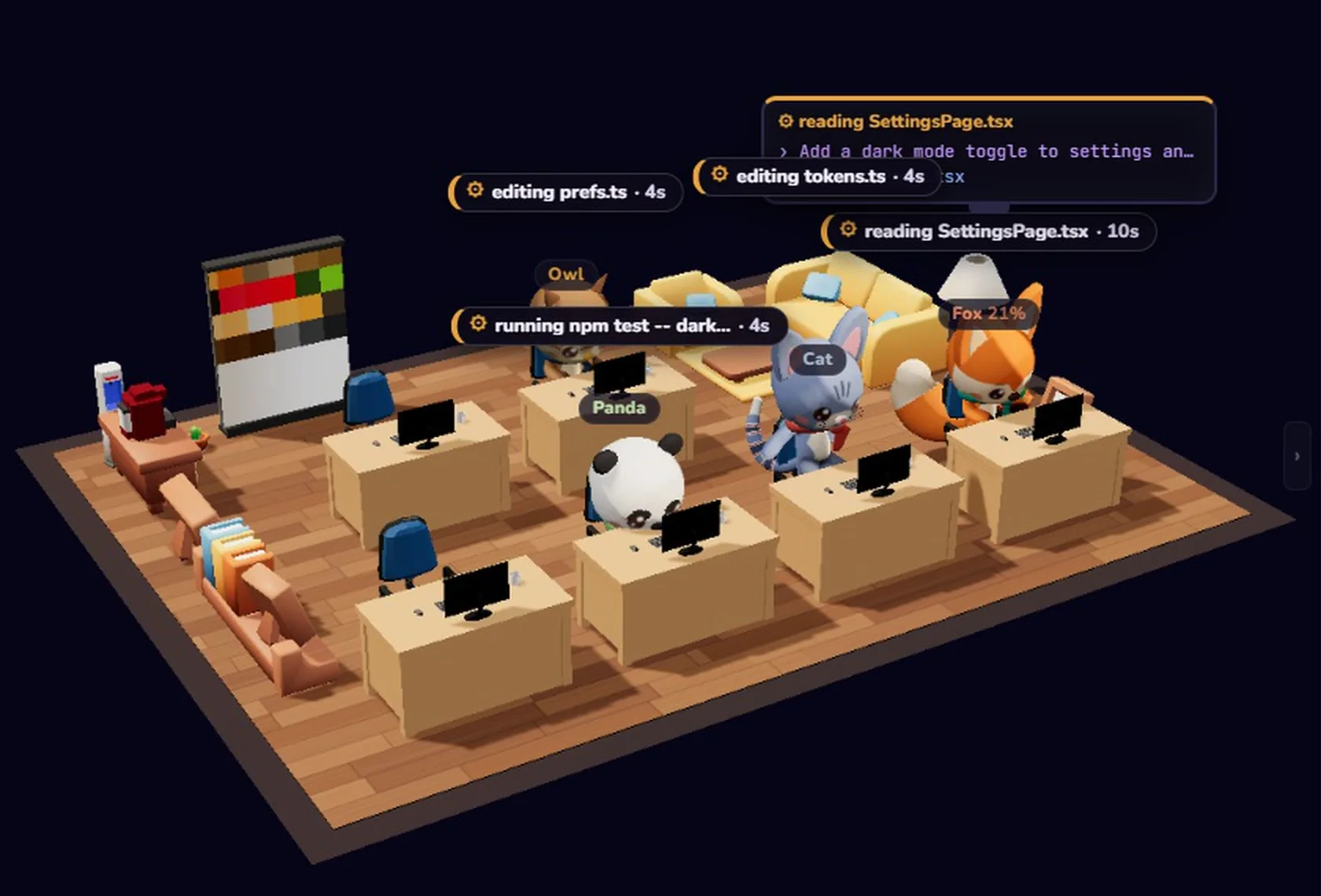
Foxpit is a desktop app that runs Claude Code, Codex, OpenCode and other agents as one team. Its overview is a 3D office: each project is a room, and the team sits at desks inside it. Rooms in the background keep working while you look at the building.
- Rooms, not tabs. Step out to see every project at once, then click a room to fly in and see the agents at their desks.
- Real terminals in a grid. Up to four agent terminals side by side, from any project, each marked active, waiting or done. They are interactive shells, not a chat wrapper.
- One shared memory. Every agent reads the same project memory, so a teammate picking up work already knows the decisions and open threads.
Related guides: running several Claude Code agents in parallel and shared memory for AI coding agents.
Frequently asked questions
Can I watch agents from different projects in one place?
Yes. Foxpit's terminal grid holds up to four real agent terminals from any project, and each one shows whether its agent is active, waiting or done. You can also step back to see every project as a room in the 3D office.
How does Foxpit know when an agent is waiting?
It gets agent status from hooks. Foxpit receives hook events over 127.0.0.1, so a permission request can appear as a desktop notification instead of waiting for you to find the right terminal tab.
Does the 3D office replace the terminal?
No. The office is the overview: each project is a room with its team at their desks. When you need detail, you open the real terminal for that agent and type in it as usual.
Does Foxpit send my code or terminal output anywhere?
No. Code, prompts and terminal output stay on your machine, and agent events travel over 127.0.0.1 only. The app has no analytics or telemetry; it only checks your plan and GitHub for updates.
See the whole team without opening a tab.